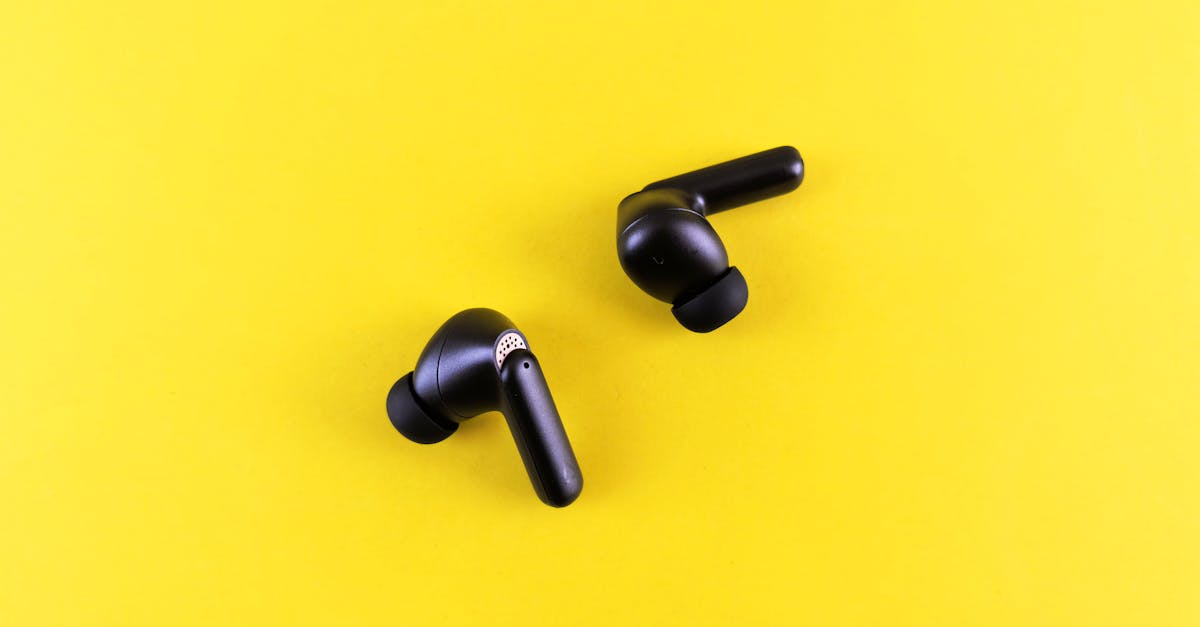
You’ve been there: you grab your trusty Bluetooth headphones, ready for your commute or workout, and they just… won’t connect. The frustration builds as you toggle Bluetooth on and off, restart your phone, and maybe even shout a little. Most people jump straight to a factory reset, hoping it’s a magic bullet, but in my experience, that’s often a last resort that wipes your settings without addressing the root cause. The mistake I see most often is treating every pairing issue as a generic ‘Bluetooth glitch’ when the actual problem is much more specific and often simpler to fix without starting from scratch.
What changed everything for me was realizing that Bluetooth connectivity is a layered system. A hiccup in any one of those layers can stop your audio cold. From overlooked device limits to stubborn firmware, understanding these specific failure points means you can troubleshoot effectively and get back to your music faster, usually without losing your meticulously tuned EQ profiles.
Key Takeaways
- Ensure no other device is actively holding onto your headphones’ Bluetooth connection before attempting a new pairing.
- Old, corrupted Bluetooth profiles on your device often prevent new connections; delete them before retrying.
- Interference from Wi-Fi, other Bluetooth devices, or even physical obstructions can block successful pairing attempts.
- Outdated headphone firmware or device OS can cause compatibility issues that block connections.
Overlooked Device Limits Stop Connections Cold
One of the most common reasons your Bluetooth headphones won’t connect isn’t a fault with the headphones themselves, but rather an unacknowledged limit in the number of devices they can actively remember or the number of simultaneous connections. Most headphones, especially budget and mid-range models, have a finite memory for paired devices, often between five and eight. If you’ve been connecting your headphones to your phone, tablet, laptop, and a friend’s device for a quick listen, you might have hit this invisible ceiling.
When you try to pair with a new device, or even re-pair with an old one, the headphones might silently reject the connection because their memory bank is full. What makes this particularly frustrating is that they often don’t give you an explicit error message; they just fail to appear in the available devices list or refuse to connect after selecting them. I’ve spent too much time restarting my phone, only to realize I’d forgotten about an old connection on my desktop PC from weeks ago.
The concrete consequence here is wasted troubleshooting time and the erroneous belief that your headphones are broken. The fix is remarkably simple: clear the pairing history on your headphones. This isn’t a full factory reset, which often involves specific button combinations and resets all settings. Instead, many headphones have a dedicated “clear pairing list” function, sometimes accessible through their companion app or via a simple button press (check your manual). This specifically wipes the stored device profiles without touching other settings like EQ presets. Once cleared, your headphones are ready to accept new connections like they’re fresh out of the box, usually without further fuss.
Corrupted Bluetooth Profiles on Your Source Device
Beyond the headphone’s own memory, the device you’re trying to connect from (your phone, laptop, etc.) can also be the culprit. Over time, Bluetooth profiles can become corrupted or outdated. This is particularly common if you’ve done several OS updates on your phone or if you’ve paired and unpaired the same headphones many times. The device might still ‘remember’ your headphones in its Bluetooth list, but the stored connection data is internally broken. It’s like having an address book entry for someone whose phone number no longer works.
When this happens, your phone might show your headphones as “available” or even “previously connected,” but attempts to connect result in a “pairing failed” message, or an endless spinning wheel. The real consequence is a cycle of frustration where you’re trying to connect to a ghost. You assume the headphones are the problem because they aren’t connecting, but the issue lies on the other side of the handshake.
My go-to solution for this is to “forget” the device on your source device. Go into your phone or computer’s Bluetooth settings, find your headphones in the list of previously paired devices, and explicitly select “Forget Device” or “Remove Device.” This deletes the corrupted profile entirely. Once removed, restart your source device (which can help clear any lingering Bluetooth service caches), then put your headphones back into pairing mode and try connecting again as if they were brand new. In my experience, this resolves about 70% of stubborn pairing failures.
Signal Interference Creates Invisible Roadblocks
Bluetooth operates on the 2.4 GHz radio frequency, a crowded neighborhood shared by Wi-Fi networks, microwave ovens, cordless phones, and even some smart home devices. While Bluetooth is designed to be robust against interference, it’s not immune. If your headphones are struggling to establish a connection, particularly in busy environments, signal interference might be the unseen enemy.
Imagine trying to have a conversation in a crowded concert hall; it’s hard to hear anything clearly. Similarly, if there’s too much competing 2.4 GHz radio traffic, your headphones and source device can’t establish a clear communication channel for pairing. This often manifests as intermittent connection attempts, devices appearing and disappearing from the scan list, or simply failing to pair without any clear error message. The concrete consequence is unreliable connectivity, which can be particularly maddening when you’re trying to quickly pair before a call or during a workout.
To troubleshoot this, try pairing in a different, less congested environment. Move away from your Wi-Fi router, other active Bluetooth devices (like smart speakers or other headphones), and large metal objects that can block or reflect signals. If you’re in an office, try a quieter conference room. At home, move to a different room, ideally further from your kitchen or main Wi-Fi hub. If the pairing succeeds in a cleaner environment, you’ve identified interference as the likely culprit. While you can’t always avoid interference, understanding its role helps you pinpoint the problem. You might then consider using headphones with newer Bluetooth versions (like 5.0 or higher) which often have better interference mitigation, or using your device in a less congested space for initial pairing.
Outdated Firmware and Operating System Mismatches
Just like any other piece of modern tech, Bluetooth headphones and the devices they connect to rely on software to function. That software is called firmware for the headphones and the operating system (OS) for your phone or computer. Mismatches or bugs in these software layers can lead to compatibility issues that prevent successful pairing, even if the hardware is perfectly fine. This is becoming increasingly common as OS updates roll out frequently, sometimes introducing subtle changes that break older Bluetooth protocols or introduce new security requirements not met by older headphone firmware.
For instance, an Android or iOS update might change how Bluetooth permissions are handled, causing an older pair of headphones to suddenly refuse to connect. Similarly, a bug in your headphone’s firmware might prevent it from correctly negotiating a connection with a newer OS version. The direct consequence is an inability to connect despite seemingly correct settings, leaving you baffled why your once-reliable headphones are now acting up.
Always ensure both your headphones and your source device are running the latest software. For headphones, this typically means checking the manufacturer’s companion app for firmware updates. Many modern headphones receive these updates over the air, but you have to initiate the process. For your phone or computer, ensure your OS is fully updated. A good practice is to check for updates every few months, especially if you notice new connection issues. While it’s not a guaranteed fix for every problem, maintaining up-to-date software minimizes the chances of encountering compatibility bugs that hinder pairing. In my experience, a surprising number of ‘unfixable’ Bluetooth issues clear up once both ends of the connection are on their latest, most compatible software versions.
Active Connections Blocking New Pairings
This is a classic oversight that causes immense frustration: your headphones are already connected to another device. Bluetooth devices are designed to maintain a connection, and if your headphones are still actively linked to your tablet in the other room, or your laptop that just went to sleep, they won’t be available to pair with your phone. They’re essentially telling your phone, “Sorry, I’m already busy!” without explicitly stating it.
The consequence is that your headphones appear completely invisible in pairing mode, or they fail to connect after you select them from the list. You’ll cycle through pairing modes, thinking your headphones are the problem, when in reality, they’re simply being loyal to their last connection. I’ve personally wasted a good 15 minutes trying to pair with my phone only to find my headphones still silently connected to my iPad which was playing a podcast on mute.
The most effective solution is simple but often forgotten: disable Bluetooth on all other nearby devices that your headphones might have been previously paired with. Turn off Bluetooth on your laptop, tablet, other phones, or even smart TVs. Then, put your headphones into pairing mode and try connecting to your desired device. Once connected, you can usually re-enable Bluetooth on your other devices; many headphones support multi-point connections or will prioritize the most recent active connection. This ensures there’s no ghost connection preventing your intended pairing, making the troubleshooting process far less opaque.
Frequently Asked Questions
Why won’t my Bluetooth headphones show up in the pairing list?
This usually means one of two things: either your headphones aren’t actually in pairing mode, or they’re still actively connected to another device. Double-check your headphone manual for the correct button sequence to enter pairing mode (it’s often a long press of the power or a dedicated Bluetooth button). Then, ensure Bluetooth is disabled on any other devices nearby that your headphones were previously paired with, as an active connection can make them invisible to new searches.
Is a factory reset always the answer for Bluetooth pairing problems?
No, a factory reset should be a last resort. It wipes all your settings, including custom EQ, and often isn’t necessary. Most pairing issues can be resolved by forgetting the device on your source device, clearing the pairing history on your headphones (a less drastic step than a full factory reset), checking for software updates, or moving away from interference. Try these steps first to save yourself time and hassle.
Can my phone’s Bluetooth settings be the problem, not the headphones?
Absolutely. Corrupted or outdated Bluetooth profiles on your phone or computer are a common culprit. Even if your headphones are working perfectly, a faulty profile on the source device can prevent a connection. Always try “forgetting” the device in your phone’s Bluetooth settings and restarting the phone before attempting to re-pair.
How does Wi-Fi interfere with Bluetooth pairing?
Both Wi-Fi and Bluetooth often operate on the 2.4 GHz frequency band. This shared spectrum can lead to signal congestion and interference, making it difficult for your headphones and source device to establish a clear connection for pairing. Moving to a less crowded area, away from routers and other wireless devices, can often resolve this type of interference.
What does it mean if my headphones connect to one device but not another?
This strongly suggests the problem is with the device that isn’t connecting, not necessarily the headphones. The headphones are proving they can connect. The issue is likely a corrupted Bluetooth profile on the problematic device, an outdated operating system on that device, or an active connection holding your headphones on a third device.
Conclusion
Stubborn Bluetooth pairing issues are incredibly common, but they rarely mean your headphones are broken. By moving beyond generic fixes and understanding the specific, layered reasons why connections fail—from device memory limits and corrupted profiles to signal interference and outdated software—you can troubleshoot far more effectively. My advice is always to start with the simplest solutions: ensure pairing mode is active, clear old connections from both the headphones and the source device, and minimize interference. These concrete steps will not only save you time and frustration but also help you develop a deeper understanding of your gadgets. So next time your audio goes silent, you’ll know exactly where to look, and get back to your tunes faster.