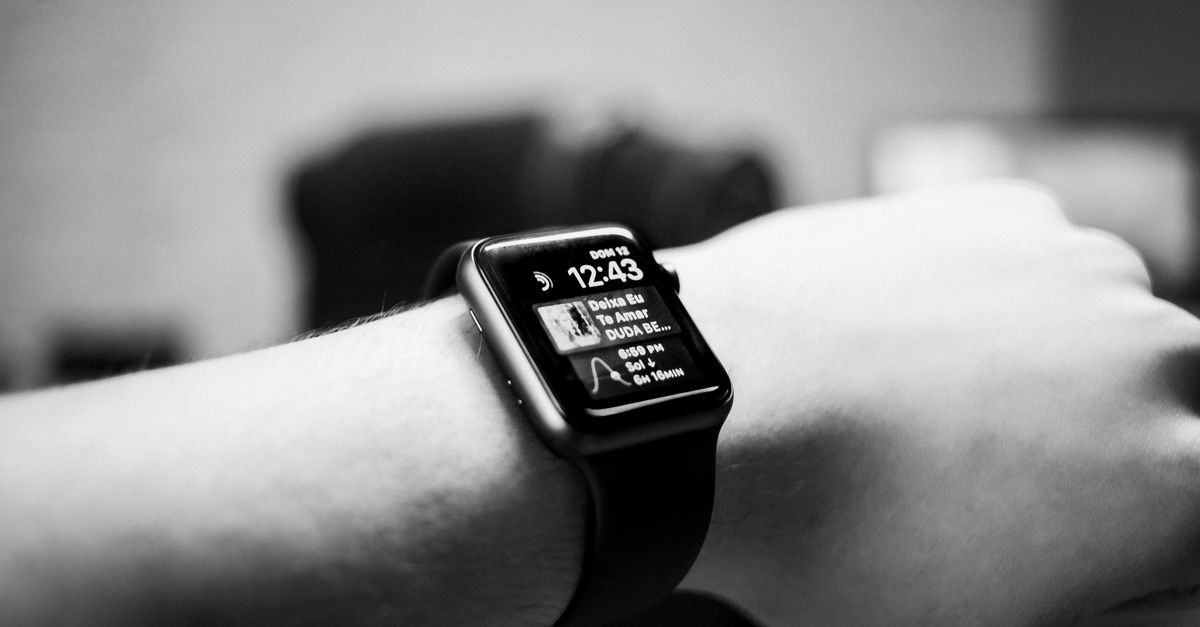
Are you staring at your wrist, wondering if your smartwatch is helping or hindering your day? In my experience, the initial excitement of constant connectivity can quickly devolve into a relentless buzz, a deluge of notifications that pull you out of the moment rather than keeping you informed. You bought a smartwatch for convenience, perhaps to stay on top of important messages without constantly pulling out your phone, or to track your fitness without interruption. But somewhere along the line, it became a tiny, demanding overlord on your wrist, vibrating for everything from a new email to a random social media like. The truth is, most people set up their smartwatch notifications once, often defaulting to mirroring their phone entirely, and then just endure the constant digital interruptions. It doesn’t have to be this way. With a strategic approach, you can transform your smartwatch from a distraction machine into a precision tool that serves your needs, not the other way around.
Key Takeaways
- Prioritize critical communications and silence non-urgent apps to reduce constant buzzing.
- Utilize your smartwatch’s ‘Do Not Disturb’ or ‘Focus’ modes to create intentional quiet times.
- Customize vibration patterns and notification sounds for immediate recognition of important alerts.
- Regularly review and adjust notification settings as your daily priorities and app usage evolve.
Silence the Noise by Rethinking ‘Mirror My Phone’
The biggest mistake I see most often is people simply enabling ‘mirror my phone’ for all notifications. While convenient in theory, this is the express lane to notification overwhelm. Your phone is designed for a broader range of interactions, many of which don’t warrant immediate wrist attention. What changed everything for me was adopting a ‘whitelist’ approach rather than a ‘blacklist.’ Instead of trying to block every annoying app, I decided which apps deserved to send notifications to my wrist. This usually boils down to a very short list: calls, texts from key contacts, calendar alerts, and perhaps one or two essential work communication tools.
For example, I immediately disabled social media notifications, most news alerts, shopping app promotions, and even many less-critical email accounts. Think about it: does a ‘like’ on your Instagram post truly require an immediate vibration on your wrist while you’re in a meeting or enjoying dinner? Probably not. These can wait until you glance at your phone. Most smartwatches, whether you’re using Wear OS, Apple Watch, or a proprietary system, allow granular control over which apps can push alerts to your device. Dive into your smartwatch’s companion app on your phone (e.g., the Galaxy Wearable app for Samsung, or the Watch app for Apple). Look for the ‘Notifications’ section and start unchecking boxes. It feels ruthless at first, but the immediate calm you’ll experience is incredibly liberating. My rule of thumb: if it can’t wait 15 minutes, it can go to my wrist. Anything else gets dismissed until I deliberately check my phone.
Master Focus Modes for Intentional Quiet
Modern smartwatches, much like their smartphone counterparts, come equipped with powerful ‘Do Not Disturb’ or ‘Focus’ modes. Yet, many users only activate them haphazardly, or not at all. This is a missed opportunity for reclaiming your attention during critical times. What changed everything for me was creating specific, automated focus profiles. For instance, I have a ‘Work’ focus mode that silences all personal notifications and only allows calls or urgent messages from my team to come through. It activates automatically when my calendar shows a meeting or when I arrive at my office location.
Similarly, I have a ‘Sleep’ mode that completely silences all notifications and dims the screen, activating nightly from 10 PM to 6 AM. This ensures my sleep tracking isn’t interrupted by a random email, and I’m not tempted to check my wrist if I wake up briefly. Many smartwatches also offer a ‘Gym’ or ‘Workout’ mode that can suppress all but critical health alerts. Taking the time to set these up and link them to your schedule, location, or even specific app usage is a game-changer. It means you don’t have to constantly fiddle with settings throughout the day; your watch intelligently adapts to your context. This proactive management prevents notification fatigue by building in periods of genuine digital peace.
Customize Vibrations and Sounds for Instant Context
When every notification feels the same – a generic buzz – your brain quickly learns to ignore them all, or worse, to associate every buzz with potential urgency, leading to constant anxiety. This is where customizing vibration patterns and notification sounds becomes a superpower. My experience taught me that a unique haptic feedback or a distinct chime can instantly tell you if an alert is important without even looking at your wrist.
Most smartwatches allow you to assign custom vibration patterns or short, distinct sounds to specific contacts or app types. For example, my partner’s texts have a long, double-tap vibration, while a generic group chat gets a short, single buzz. Similarly, my calendar alerts have a specific, gentle chime, different from the more urgent tone for a direct call. This nuance means I can quickly triage notifications. A specific vibration for my child’s school app means I’ll stop what I’m doing and check, while a generic buzz can be safely ignored until a natural break. Dig into your smartwatch’s notification settings, typically under ‘Sounds & Haptics’ or similar. Experiment with the options. Some watches even allow you to create your own custom haptic feedback patterns, giving you ultimate control. This small effort drastically reduces the cognitive load of distinguishing between urgent and trivial interruptions.
Regularly Audit and Adjust Your Settings
Your life isn’t static, and neither should your notification settings be. The mistake I see most often is people setting up their preferences once and then letting them fester for months or even years. What changed everything for me was making notification audits a regular, if brief, habit. Every quarter, or whenever I notice myself feeling particularly overwhelmed by my watch, I dedicate 10-15 minutes to reviewing my settings.
Consider a scenario: you signed up for a new hobby group, and suddenly your watch is buzzing with every forum post. Or you’ve finished a major work project and no longer need urgent alerts from that specific communication channel. Your habits, priorities, and even your circle of close contacts evolve. By regularly reviewing your smartwatch’s app notification permissions, your ‘Do Not Disturb’ schedules, and your custom vibration patterns, you ensure your device remains optimized for your current needs. It’s a proactive measure that prevents that insidious creep of digital noise from overwhelming your wrist again. Treat your smartwatch as a living tool that needs occasional recalibration, and it will serve you far better than a set-it-and-forget-it approach ever could.
Frequently Asked Questions
How do I stop my smartwatch from vibrating for every single email?
To stop your smartwatch from vibrating for every email, you need to go into the companion app on your phone (e.g., Watch app for Apple, Galaxy Wearable for Samsung). Find the ‘Notifications’ section, then locate your email app(s) and disable notifications for them, or configure them to only alert for specific types of emails (e.g., from VIP contacts).
Can I set different notification preferences for different times of day?
Yes, most smartwatches offer ‘Do Not Disturb’ or ‘Focus’ modes that can be scheduled to activate at certain times (e.g., during work hours or sleep). You can often customize these modes to allow only specific contacts or apps to send notifications through, ensuring important alerts still reach you while silencing others.
My smartwatch notifications are delayed. What can I do?
Delayed notifications can often be a connectivity issue. Ensure your smartwatch is properly connected to your phone via Bluetooth (and Wi-Fi if applicable). Check that your phone’s battery optimization settings aren’t aggressively closing the smartwatch companion app in the background. Sometimes, simply restarting both your phone and smartwatch can resolve temporary glitches.
How can I make important notifications stand out more?
To make important notifications stand out, customize their vibration patterns or sounds. Most smartwatches allow you to set unique haptic feedback or short chimes for specific apps or contacts. This way, you can recognize an urgent alert without even looking at your wrist.
Is it better to mirror all phone notifications or be selective?
Being selective is almost always better. Mirroring all phone notifications often leads to ‘notification fatigue’ and reduces the effectiveness of your smartwatch. By carefully choosing which apps can send alerts to your wrist, you ensure only truly important information gets your immediate attention, transforming your smartwatch into a more valuable tool rather than a distraction.
Conclusion
Your smartwatch has the potential to be an incredible asset for staying informed and connected, but only if you take control of its notification flow. By being intentional about what gets through, utilizing focus modes, customizing alerts for immediate context, and regularly auditing your settings, you can transform it from a demanding buzz machine into a precisely tuned instrument. The next step is simple: open your smartwatch’s companion app right now. Go through your notification settings, one app at a time, and ask yourself: ‘Does this absolutely need to buzz on my wrist right now?’ You’ll be surprised how many can wait. Reclaim your focus, one silent notification at a time.