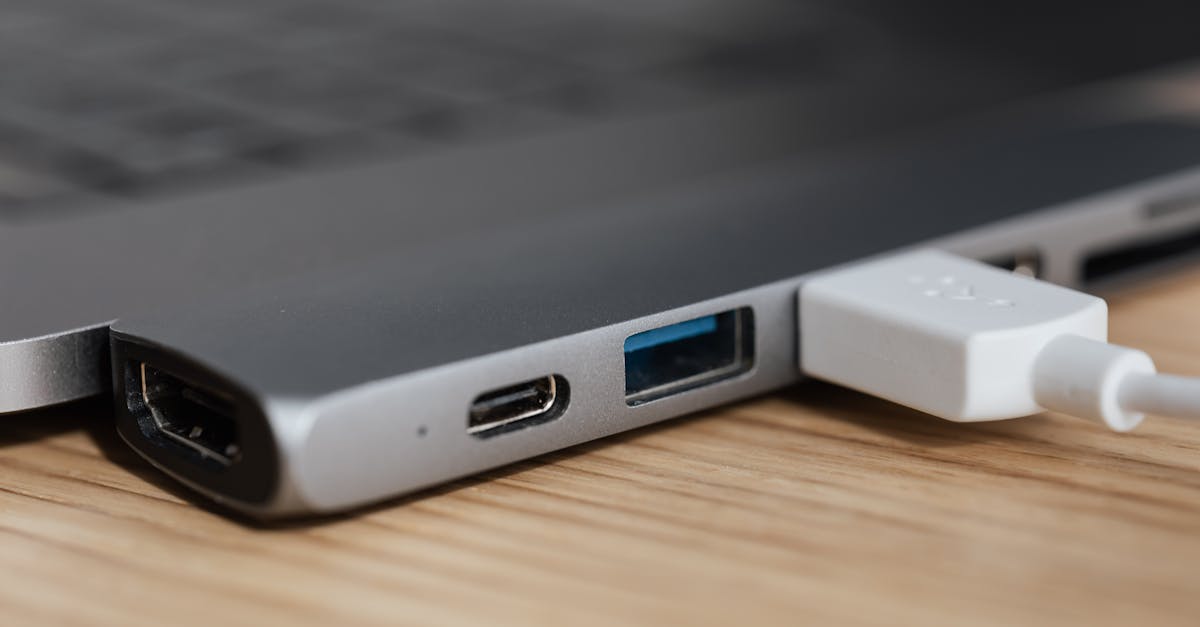
For anyone working from home, hot-desking, or simply trying to declutter their desk, a laptop docking station seems like a magic bullet. Connect one cable to your laptop, and suddenly you have multiple monitors, a keyboard, mouse, Ethernet, and external drives all humming along. The promise is seamless transition from portable to powerhouse. But in my experience, the reality often falls short if you don’t know exactly what you’re looking for. The mistake I see most often is users buying a generic ‘USB-C dock’ only to find it doesn’t power their high-resolution monitors, or worse, struggles to charge their laptop while driving peripherals. You end up with a tangled mess of supplementary cables, defeating the entire purpose.
What changed everything for me was realizing that not all docking stations are created equal, and their capabilities depend entirely on three critical factors: the ports they offer, their power delivery (PD) capabilities, and their display support. Once you understand how these three interact with your specific laptop and external devices, choosing the right dock becomes surprisingly straightforward. This isn’t about buying the most expensive option; it’s about buying the right option that genuinely streamlines your setup without hidden compromises.
Key Takeaways
- Prioritize a docking station with sufficient power delivery (PD) to charge your laptop and power all peripherals simultaneously.
- Understand your laptop’s USB-C port capabilities to ensure compatibility with advanced features like DisplayPort Alternate Mode.
- Confirm the docking station’s display output specifications match your monitor’s resolution and refresh rate requirements.
- Opt for a Thunderbolt-certified dock if you need maximum bandwidth for multiple 4K displays and high-speed external storage.
Matching Power Delivery to Your Laptop’s Needs
One of the most common pitfalls with docking stations is insufficient power delivery. Many docks advertise ‘USB-C charging,’ but this can be misleading. Your laptop has a specific power requirement, typically measured in watts (W), which you can find on its power adapter. For instance, a MacBook Pro might require 96W, while a lighter ultrabook could need 60W. A docking station that only offers 65W PD will charge your 96W laptop slowly, if at all, especially when other power-hungry peripherals are connected. In my experience, this leads to battery drain during heavy use, even while plugged in. The whole point of a single-cable solution is lost if you still need to connect your laptop’s dedicated power brick.
My recommendation is to always check the Power Delivery (PD) output of the docking station. Aim for a dock that matches or exceeds your laptop’s rated power input. If your laptop needs 96W, look for a dock offering 96W or 100W PD. Most USB-C docks cap out at 60W or 65W because that’s the common standard for many smaller devices. However, many powerful laptops demand more. Some advanced docks come with their own beefy power adapters, capable of outputting 100W or even 130W, which means they can not only power your laptop but also provide stable power to connected devices like external SSDs, USB hubs, or even some smaller drawing tablets, preventing brownouts or sluggish performance for those accessories. Overlooking this specification is the quickest way to end up with a less-than-ideal setup.
Decoding Your Laptop’s USB-C Port Capabilities
Another critical, yet often misunderstood, factor is the specific capabilities of your laptop’s USB-C port. Not all USB-C ports are created equal, and this dictates what a docking station can actually achieve. Many users assume ‘USB-C’ means full functionality, but this is a major misconception. There are primarily three types of USB-C ports relevant to docking stations:
- Standard USB-C (USB 3.1/3.2 Gen 1/2): These typically support data transfer (5Gbps or 10Gbps) and basic power delivery. They might support one external display through DisplayPort Alternate Mode (DP Alt Mode) at 1080p, but multi-monitor setups or 4K resolution are usually out of the question without significant compression, if at all. Many budget laptops feature these ports.
- USB-C with DisplayPort Alternate Mode (DP Alt Mode): This is more common. It allows the USB-C port to output video signals directly. Most docks rely on this. These ports can typically drive one 4K display at 60Hz or two 1080p displays. The key is that the laptop’s GPU needs to support this output.
- Thunderbolt (Thunderbolt 3 or Thunderbolt 4): This is the gold standard for docking stations. Thunderbolt ports offer significantly higher bandwidth (40Gbps) than standard USB-C. This extra bandwidth allows for daisy-chaining multiple high-resolution displays (e.g., two 4K 60Hz monitors), connecting high-speed external SSDs, and providing robust power delivery, all through a single cable. If you have a modern high-end laptop (like a recent MacBook Pro, Dell XPS, or HP Spectre), chances are it has Thunderbolt. Always verify this by looking for the lightning bolt symbol next to the USB-C port.
If your laptop only has a standard USB-C port without Thunderbolt or robust DP Alt Mode support, even the most expensive Thunderbolt dock won’t magically give you dual 4K monitors. The dock is limited by the capabilities of the host port. In my experience, confirming your laptop’s port type is the first step before even looking at dock specifications. You can usually find this information in your laptop’s manual or by checking the manufacturer’s product page for your specific model number.
Evaluating Display Output and Configuration Support
The third critical factor, especially for those running multiple monitors or high-resolution displays, is the docking station’s display output capabilities. This is where many users get frustrated, expecting seamless dual 4K 60Hz output only to get stuck with lower resolutions or refresh rates.
Docking stations achieve video output in a few ways:
- DisplayPort Alternate Mode (DP Alt Mode): As mentioned, this routes native video signals. A single USB-C connection can typically support one 4K 60Hz display or two 1080p 60Hz displays through a dock using DP Alt Mode. The bandwidth is shared between video and data, so adding more displays or higher resolutions can impact data transfer speeds.
- DisplayLink Technology: Some docks, particularly those designed for broader compatibility (including older laptops or systems without DP Alt Mode), use DisplayLink chips. These chips essentially create a virtual display adapter, compressing video data and sending it over standard USB. While DisplayLink allows for multiple displays (sometimes even three or four 4K monitors) from a non-Thunderbolt USB-C or even a USB-A port, it comes with tradeoffs. In my testing, DisplayLink-driven displays can exhibit slight latency, be more prone to driver issues, and occasionally show artifacts or reduced video quality, especially during fast-motion video or gaming. For office work and static content, it’s often fine, but for creative professionals or gamers, it can be a deal-breaker.
- Thunderbolt: Thunderbolt docks leverage their immense bandwidth to provide uncompressed, native video signals to multiple displays. A Thunderbolt 3 or 4 dock can typically support two 4K 60Hz displays or one 5K 60Hz/8K 30Hz display. This is ideal for demanding users who need pristine image quality and minimal latency.
When evaluating a dock, pay close attention to the maximum supported resolution and refresh rate for each display output. If it says ‘4K 30Hz,’ that’s usually not what you want for smooth desktop use. Look for ‘4K 60Hz’ or higher. Also, consider the number and type of display ports (HDMI, DisplayPort) on the dock and ensure they match your monitors. A dock might offer two HDMI ports, but if your monitors only have DisplayPort, you’ll need adapters, which can add complexity and potential points of failure.
For complex multi-monitor setups, it’s often wise to look for docks that explicitly state ‘Thunderbolt’ or ‘DisplayLink’ if you need more than two displays. Don’t assume a general USB-C dock will handle it. The sweet spot for most users needing a simple, reliable dual-monitor setup is often a USB-C dock leveraging DP Alt Mode from a compatible laptop port, or a Thunderbolt dock if your laptop supports it.
Considering Port Selection and Future-Proofing
Beyond power and display, the sheer variety of ports on a docking station is what makes it an ‘accessory’ rather than just a simple adapter. While it’s tempting to get a dock with all the ports, prioritize what you actually need and what might future-proof your setup. In my experience, excess ports just add to the cost and complexity without delivering real value if they go unused.
- USB-A Ports: Essential for older peripherals like keyboards, mice, and printers. Look for a mix of USB 3.0 (5Gbps) for general use and possibly some lower-speed ports for basic accessories.
- USB-C Data Ports: Useful for connecting newer USB-C devices like external SSDs, or even charging your phone at a decent speed. Pay attention to the data speed – USB 3.2 Gen 2 (10Gbps) is ideal for fast storage.
- Ethernet Port: Crucial for stable, high-speed internet, especially for gaming, large file transfers, or video conferencing where Wi-Fi can be unreliable. Gigabit Ethernet (1Gbps) is standard and recommended.
- SD Card Reader: A nice-to-have for photographers or videographers, but often slower than dedicated card readers. Check the speed specification (UHS-II is faster than UHS-I).
- Audio Jack: A combined 3.5mm audio jack for headphones and microphones can be convenient if your laptop lacks one or if you prefer a wired setup.
When thinking about future-proofing, consider the trend towards faster USB standards. While USB 3.2 Gen 2 (10Gbps) is common, USB 4 and Thunderbolt 4 offer 40Gbps. If you plan to upgrade your peripherals to high-speed external storage in the next couple of years, investing in a Thunderbolt 4 dock now might save you from another upgrade later. However, if your current and foreseeable needs are modest, a cheaper USB-C dock with adequate power and display support is often sufficient. Don’t overspend on capabilities you won’t use.
Thunderbolt vs. USB-C Docks: Making the Right Investment
This is the biggest decision point for many users, and it directly relates to the capabilities of your laptop’s USB-C port, as discussed earlier. Understanding the distinction is key to making the right investment.
USB-C Docks:
- Pros: Generally more affordable, wider compatibility (works with any USB-C port that supports DP Alt Mode), good for basic setups (one 4K monitor or two 1080p, moderate power delivery).
- Cons: Limited bandwidth, can struggle with multiple high-resolution displays, may not provide enough power for demanding laptops, performance can degrade under heavy load.
- Best for: Users with standard USB-C laptops, those needing one or two basic external monitors, and office productivity tasks without heavy data transfer needs.
Thunderbolt Docks (Thunderbolt 3 or Thunderbolt 4):
- Pros: High bandwidth (40Gbps) for multiple 4K/5K displays at 60Hz, supports high-speed external storage, provides robust power delivery, can daisy-chain other Thunderbolt devices, superior performance and reliability.
- *Cons:** More expensive, requires a Thunderbolt-compatible laptop port, can be overkill for basic setups.
- Best for: Users with Thunderbolt-enabled laptops, creative professionals, gamers, anyone needing two or more high-resolution displays, and those who frequently use high-speed external storage.
In my experience, if your laptop has a Thunderbolt port, investing in a Thunderbolt dock is almost always worth the extra cost. The performance, reliability, and sheer capability of a single-cable setup are unmatched. You won’t have to worry about bandwidth limitations or power issues. If your laptop only has a standard USB-C port, a Thunderbolt dock simply won’t unlock its full potential, so a well-chosen USB-C dock is the smarter, more economical choice. It’s about matching the dock to your current hardware and your actual workflow, not just buying the ‘best’ one on paper.
Frequently Asked Questions
Can a docking station damage my laptop battery?
No, a properly functioning docking station with appropriate power delivery (PD) capabilities will not damage your laptop battery. If the dock’s PD output is lower than your laptop’s requirement, it might charge slowly or drain under heavy load, but it won’t cause damage. Always ensure the dock’s PD matches or exceeds your laptop’s needs for optimal performance.
Why is my external monitor flickering or not displaying properly when connected to my dock?
This often points to insufficient bandwidth or incompatible display support. Check if your laptop’s USB-C port supports DisplayPort Alternate Mode (DP Alt Mode) or Thunderbolt. Ensure the dock’s display output resolution and refresh rate match your monitor and that the cable you’re using is rated for those specifications. Also, update your laptop’s graphics drivers and the dock’s firmware.
Can I use a Thunderbolt dock with a non-Thunderbolt USB-C laptop?
Yes, but it will function only as a standard USB-C dock, limited by the capabilities of your non-Thunderbolt USB-C port. You will not get the full bandwidth or multi-display capabilities of a true Thunderbolt connection, meaning you might only support one external display or slower data transfer speeds. It’s generally not a cost-effective choice if you don’t have a Thunderbolt laptop.
Do I need to install drivers for my docking station?
Most modern USB-C and Thunderbolt docks are plug-and-play for basic functions. However, docks using DisplayLink technology often require specific drivers for their multi-display features to work correctly. Always check the manufacturer’s website for your specific dock model to see if any drivers or firmware updates are recommended.
How many monitors can a docking station support?
This depends heavily on the type of docking station and your laptop’s USB-C port capabilities. A basic USB-C dock might support one 4K 60Hz display or two 1080p 60Hz displays. Thunderbolt 3/4 docks can typically support two 4K 60Hz displays or one 5K/8K display. DisplayLink-based docks can sometimes support three or more displays, but with potential performance tradeoffs. Always check the dock’s specifications for exact display configurations.
Conclusion
Choosing the right laptop docking station boils down to understanding your specific needs and matching them to the dock’s capabilities in terms of power delivery, display support, and port selection. Don’t be swayed by marketing jargon; dig into the specifications. Verify your laptop’s USB-C port type – is it standard USB-C, or is it the more powerful Thunderbolt? This single piece of information will largely dictate your options and prevent disappointment. Ensure the dock can provide sufficient power to charge your laptop and all its connected peripherals, and critically, confirm it supports the resolutions and refresh rates of your external monitors. By focusing on these core elements, you’ll avoid the common pitfalls and achieve the streamlined, single-cable desktop experience you’re truly looking for.